How to Get the Most from YouTube: Tips, Features and Tricks
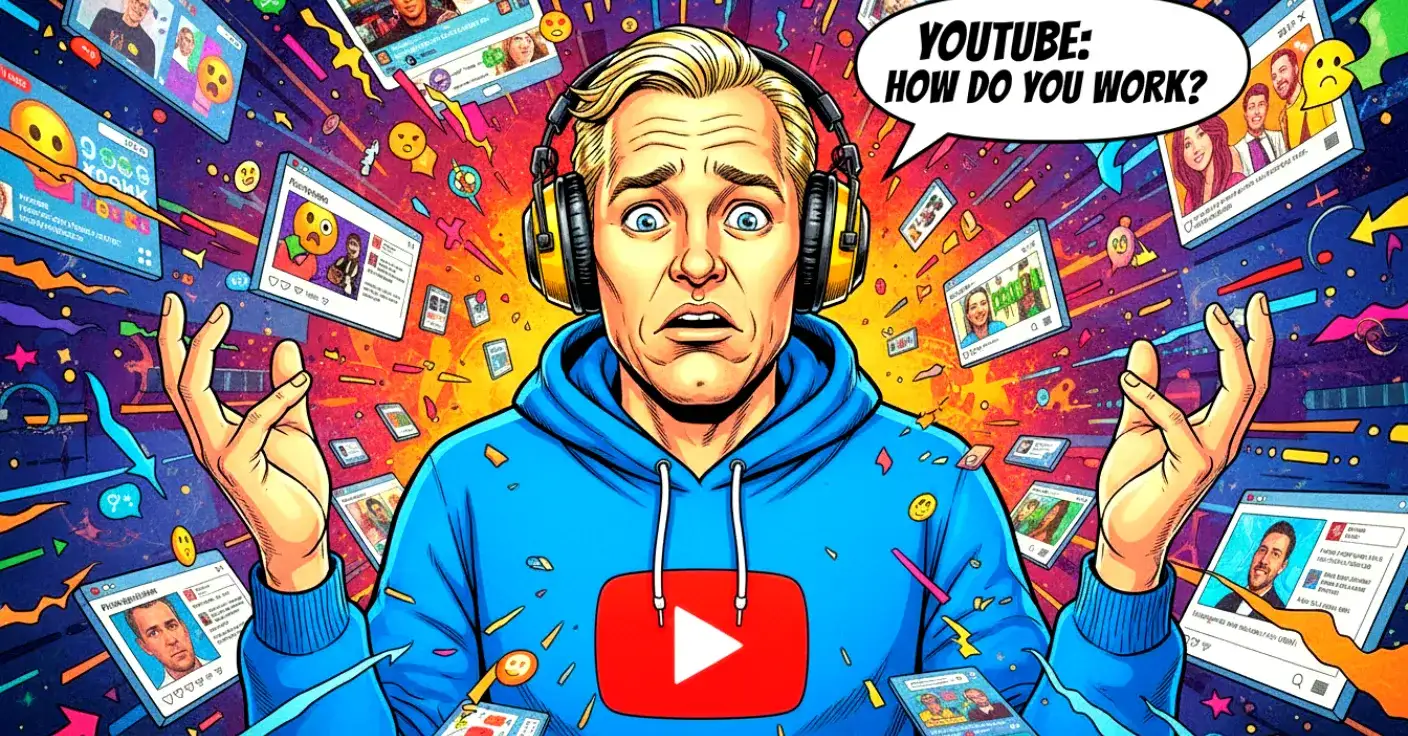
YouTube is one of the world's most popular websites and has become a central place for entertainment, learning, news, music and live events. Millions of people use it every day to watch videos, discover new interests, learn practical skills and follow their favourite creators.
While many people simply visit YouTube to watch the occasional video, the platform offers far more features than most users realise. Creating an account, subscribing to channels, organising playlists, improving playback quality and using helpful browser extensions can transform the overall experience.
This guide explains how YouTube works, what you can find on the platform and the best ways to make the most of its features across computers, smartphones, tablets and smart TVs.
A Brief History of YouTube
YouTube was created by Chad Hurley, Steve Chen and Jawed Karim, who had previously worked together at PayPal. The service quickly attracted attention because it allowed ordinary people to upload and share videos with a worldwide audience.
The first video uploaded to YouTube was titled Me at the Zoo, featuring Jawed Karim at San Diego Zoo. Since then, the platform has grown into one of the largest video-sharing services online.
Google later acquired YouTube, helping it expand into the massive platform it is today. What started as a website for sharing short clips has evolved into a service containing educational content, live broadcasts, documentaries, podcasts, music videos, gaming streams, news coverage and much more.
What Can You Find on YouTube?
One of YouTube's biggest strengths is the sheer variety of content available.
User-Created Videos
Many videos are produced by everyday users. These range from family recordings and travel videos to comedy sketches, product reviews and personal vlogs.
Modern smartphones make it easy to record high-quality video, meaning independent creators can now produce content that rivals professional productions.
Music
YouTube is one of the world's largest music platforms. Many artists maintain official channels where they upload:
- Music videos
- Live performances
- Acoustic sessions
- Interviews
- Album playlists
For an improved music listening experience, YouTube Music is available at: music.youtube.com
Users can create playlists, discover new artists and listen across multiple devices.
Films and Documentaries
Many film studios and distributors publish trailers, clips and full-length films. There is also a large collection of documentaries covering topics such as:
- History
- Nature
- Technology
- Science
- Travel
- Current affairs
Educational Content
YouTube has become one of the best free learning resources available online.
Popular educational topics include:
- Languages
- Mathematics
- Science
- Computer skills
- Photography
- Home improvement
- Cooking
- Business
- Fitness
Many universities, colleges and educational organisations also publish lectures and training materials through YouTube channels.
News
Major news organisations use YouTube to publish breaking news, interviews and analysis. Following trusted news channels can provide easy access to updates from around the world.
Sport
Sports fans can watch:
- Highlights
- Interviews
- Analysis
- Live streams
- Historical footage
Many sports organisations operate official YouTube channels featuring exclusive content.
Live Events
YouTube supports live streaming and regularly hosts:
- Product launches
- Conferences
- Concerts
- Sporting events
- Press briefings
- Gaming broadcasts
You can browse current and upcoming broadcasts at: youtube.com/live
Creating a YouTube Account
Although anyone can watch most videos without signing in, having a YouTube account unlocks many useful features.
Because YouTube is linked to Google accounts, you can simply sign in using an existing Google account.
Benefits include:
- Subscribing to channels
- Creating playlists
- Saving videos for later
- Viewing watch history
- Posting comments
- Receiving recommendations
- Uploading your own videos
- Taking part in live chats
To get started, visit: youtube.com
Then select Sign In in the top-right corner.
Understanding the YouTube Interface
The YouTube interface is designed to help viewers discover content quickly.
Home
The Home page displays recommended videos based on your viewing habits and interests.
Subscriptions
This section shows videos from channels you have chosen to follow.
Regular use of subscriptions helps ensure you don't miss uploads from your favourite creators.
History
Your History page provides a complete record of previously watched videos.
This can be useful when trying to locate a video you forgot to save.
Playlists
Playlists allow you to organise content into groups.
For example, you could create separate playlists for:
- Travel videos
- Fitness routines
- Music
- Tutorials
- DIY projects
Library
Your Library combines:
- Watch history
- Playlists
- Saved content
- Downloads (where available)
It acts as a personal media collection within YouTube.
Using Playlists Effectively
Playlists are one of YouTube's most useful organisational tools.
When you find a video worth saving:
- Click Save beneath the video.
- Choose an existing playlist.
- Or create a new playlist.
Creating themed playlists helps organise your favourite content and makes it easier to find again later.
Subscribing to Channels
Subscribing is the easiest way to keep up with creators you enjoy.
Simply visit a channel and click Subscribe.
You can also enable notifications by selecting the bell icon. This allows YouTube to alert you when new content is published.
Managing notifications helps prevent missing uploads from important channels while avoiding unnecessary alerts.
Uploading Your Own Videos
Uploading content is straightforward.
After signing in:
- Select the camera icon with a plus symbol.
- Choose Upload Video.
- Select your video file.
- Add a title and description.
- Choose your audience settings.
- Set visibility options.
- Publish when ready.
Creators can upload public, private or unlisted videos depending on who should be able to view them.
Video Quality and Playback Options
YouTube uses modern web technologies and supports a wide range of video qualities.
Available playback resolutions may include:
- 480p
- 720p HD
- 1080p Full HD
- 1440p
- 2160p (4K)
- Higher resolutions on supported content
The available quality depends on:
- The video's original resolution
- Your internet connection
- The capabilities of your device
Theatre Mode
Theatre Mode enlarges the player while keeping access to comments and recommendations.
Many users find it offers the best balance between video size and usability.
Full Screen Mode
Full Screen completely fills the display and is ideal for films, documentaries and sporting events.
Picture-in-Picture
Many modern browsers and mobile devices support Picture-in-Picture mode.
This allows you to watch a video in a floating window while working on other tasks.
Improving YouTube with Browser Extensions
Several browser extensions can significantly improve the YouTube experience.
Always install extensions only from official browser stores.
Compatible browsers include:
- Google Chrome
- Microsoft Edge
- Mozilla Firefox
- Brave
- Vivaldi
- Opera
uBlock Origin
uBlock Origin is one of the most popular content blockers available. It helps reduce intrusive advertising and can improve page performance on compatible browsers.
Website: ublockorigin.com
SponsorBlock
SponsorBlock automatically skips sponsored segments, self-promotion sections and other repetitive content based on community contributions.
Many YouTube users find it one of the most useful enhancements available.
Website: sponsor.ajay.app
Enhancer for YouTube
Enhancer for YouTube provides a variety of useful features including:
- Custom playback controls
- Volume management
- Cinema mode options
- Keyboard shortcuts
- Video quality preferences
Website: mrfdev.com
Return YouTube Dislike
This extension displays estimated dislike information using community data and archived sources, helping viewers evaluate content before watching.
Website: returnyoutubedislike.com
Helpful YouTube Tips and Tricks
Save Videos for Later
If you don't have time to watch something immediately, click Save and add it to your Watch Later playlist.
This creates a personal viewing queue.
Adjust Playback Speed
YouTube allows users to speed up or slow down videos.
This is particularly useful for:
- Tutorials
- Lectures
- Podcasts
- Educational content
Many viewers watch informational videos at 1.25x or 1.5x speed.
Use Keyboard Shortcuts
Useful shortcuts include:
- Spacebar: Play or pause
- J: Rewind ten seconds
- L: Skip forward ten seconds
- M: Mute audio
- F: Full screen
- C: Toggle captions
These can greatly improve navigation.
Turn on Captions
Many videos provide subtitles and captions.
Captions can help with:
- Accessibility
- Language learning
- Understanding difficult accents
- Watching without sound
Create Video Clips
Some videos allow viewers to create and share short clips directly from the player.
This is a convenient way to share a specific moment with friends or colleagues.
Jump to a Specific Time
When sharing a video, you can start playback from an exact point.
Simply pause the video at the desired moment, select Share, then choose Start at.
The generated link will begin playback at that timestamp.
Loop a Video
YouTube now includes built-in looping.
Right-click on the video and select Loop.
This is useful for:
- Music tracks
- Relaxation videos
- Study sounds
- Practice sessions
Using YouTube on Smartphones and Tablets
The official YouTube app provides the best experience on mobile devices.
Features include:
- Offline downloads for eligible content
- Casting support
- Notifications
- Background viewing through certain subscription options
- Voice search
Mobile users can also upload videos directly from their phones.
Casting YouTube to Your Television
A particularly useful feature is the ability to cast YouTube videos from your phone or tablet to a compatible television.
Many modern devices support this, including:
- Smart TVs
- Chromecast devices
- Google TV
- Android TV systems
- Streaming sticks supporting Cast technology
To cast a video:
- Ensure both devices are connected to the same network.
- Open YouTube on your phone.
- Tap the Cast icon.
- Select your television.
- Choose a video to play.
Once connected, your phone acts as a remote control while playback occurs on the television.
This is often simpler than typing search terms using a TV remote.
YouTube on Android TV Devices
Android TV and Google TV devices provide an excellent YouTube viewing experience on larger screens.
Alongside the official app, many users choose to install SmartTube.
What Is SmartTube?
SmartTube is an alternative YouTube client designed specifically for Android TV devices.
Popular features include:
- Sponsor skipping support
- Ad-free viewing interface
- Custom playback controls
- Improved remote navigation
- Automatic quality selection
- Codec and performance tweaks
Installing SmartTube with Downloader
Many Android TV devices support the Downloader app, which simplifies installation.
General steps include:
- Install Downloader from your device's app store.
- Allow installation from unknown sources when prompted.
- Open Downloader.
- Visit the official SmartTube website.
- Download the latest release.
- Follow the on-screen installation instructions.
Always download SmartTube from its official website or official project page.
Useful Android TV Tips
To improve YouTube on Android TV:
- Use a wired connection where possible.
- Enable automatic updates.
- Pair your phone with YouTube for easier searching.
- Use playlists instead of repeatedly searching for videos.
- Subscribe to channels on your phone and watch them later on TV.
Privacy and Safety
As with any online platform, it is important to use YouTube safely.
Consider the following:
- Use strong passwords.
- Enable two-factor authentication on your Google account.
- Be cautious when sharing personal information in comments.
- Report inappropriate content when necessary.
- Use Restricted Mode for younger viewers.
Parents may also wish to explore YouTube Kids, which provides content designed specifically for children.
Copyright and Community Rules
YouTube has strict rules regarding uploaded content.
Users should avoid uploading material they do not own or have permission to use.
Content may be removed if it:
- Infringes copyright
- Contains illegal material
- Violates community guidelines
- Includes harmful or dangerous content
- Breaches privacy rules
Creators should familiarise themselves with YouTube's official policies before publishing videos.
Making YouTube Work Better for You
The best YouTube experience comes from tailoring the platform to your interests.
Some of the most effective ways to do this include:
- Subscribing to quality channels
- Creating organised playlists
- Using Watch Later regularly
- Adjusting playback speed
- Installing useful browser extensions
- Using captions where appropriate
- Casting content to a television
- Taking advantage of Android TV apps such as SmartTube
- Keeping recommendations relevant by liking and subscribing to content you genuinely enjoy
Over time, YouTube's recommendations become more accurate, helping you discover content that matches your interests.
Conclusion
YouTube is far more than a simple video-sharing website. It is an enormous source of entertainment, education, music, news and practical information. By creating an account, organising playlists, subscribing to channels and making use of tools such as browser extensions, casting features and Android TV apps, you can enjoy a smoother and more personalised experience. Whether you use YouTube for learning new skills, keeping up with current events or simply relaxing with your favourite creators, a few simple adjustments can make the platform significantly more enjoyable and useful.